
Last updated
Biketerra talks to your equipment over Bluetooth.
What you can pair
| Device | What Biketerra gets from it |
|---|---|
| Smart trainer (FTMS, Wahoo, or FE-C over Bluetooth) | Power, cadence, and control of resistance |
| Smart bike (Wahoo KICKR BIKE, Stages, MUOV, Wattbike) | As a trainer, plus the bike's buttons or shifters |
| Rowing machine (FTMS rower, e.g. Concept2 PM5) | Power, stroke rate and stroke count. See Rowing |
| Power meter | Power, cadence and left/right balance |
| Cadence sensor | Cadence. Wheel speed is never used |
| Heart-rate strap | Heart rate |
| Shifters and controllers (Zwift Click, Play, Ride, CYCPLUS BC2, OpenBikeControl) | Button presses for gears, steering, braking and the menu. See Virtual Shifting and OpenBikeControl |
| Steering (Elite Sterzo) | Steering angle |
| CORE | Core and skin temperature |
| Tymewear VitalPro | Breathing rate and ventilation |
If a trainer offers both FTMS and FE-C, Biketerra uses FTMS.
Pairing in the browser
Chrome, Edge and Brave (with the Web Bluetooth API flag enabled at brave://flags) support Web Bluetooth. Safari and Firefox don't, and the Devices tab will say so.
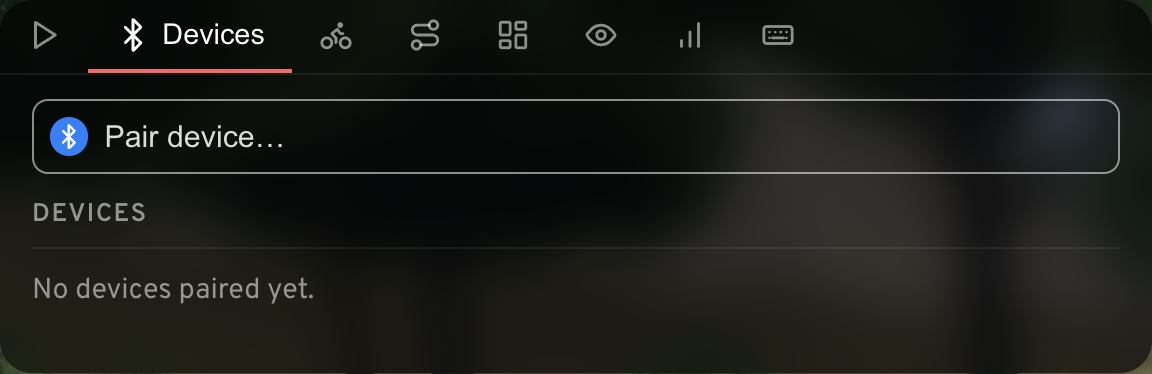
- Open the ride menu (M) and go to the Devices tab.
- Click Pair device… and pick the device in the browser's chooser. Devices you've already paired are left out of the list.
- Repeat for each device.
The browser forgets devices when you leave the page, so you'll pair again next ride.
Pairing in the native app
The native app scans on its own when you open the Devices tab, and lists what it finds under Nearby with a Connect button. A scan runs for 30 seconds; Scan for devices starts another.
Any device that connects is saved. Next time, the app reconnects it as soon as a scan finds it. Press Remove to forget a device.
Reading the Devices tab
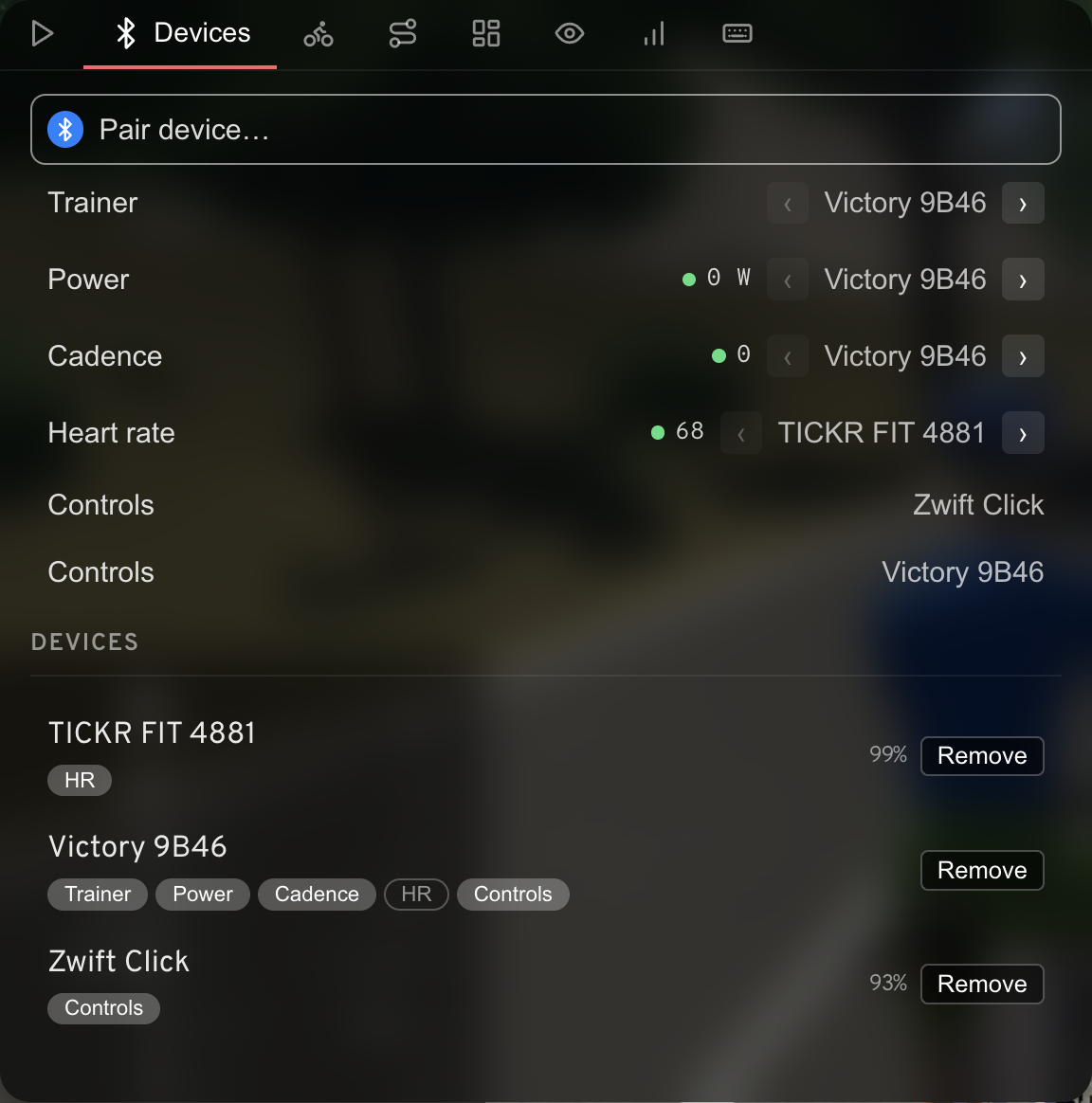
- The rows at the top (Trainer, Power, Cadence, Heart rate) show which device feeds each reading, with the live value beside it. Use the arrows to switch to another device, or to Off.
- Each paired device carries chips for what it can supply. A filled chip is the active source; an outlined one can be selected by clicking it.
- Battery level shows for devices that report it (the trainer excluded).
- Power match appears here when two power sources are paired. See Power Match.
Which device wins
When several devices supply the same reading, Biketerra picks the best one automatically, and a better device connecting later takes over:
- Power: rower, then power meter, then trainer.
- Cadence: rower, then cadence sensor, then power meter, then trainer.
- Heart rate: strap, then CORE, then trainer.
You can only have one trainer or rower at a time. Pairing a new one replaces the old.
Dropouts and reconnecting
- A device that drops gets one automatic reconnect attempt. While it's trying, a spinner shows beside its name and the source row reads reconnecting. If the retry fails, the device leaves the list; pair it again.
- Readings from a disconnected device go blank rather than freezing at the last value.
- Heart rate clears after 5 seconds without data, even if the strap still looks connected. Rowing power and cadence clear 5 seconds after the last stroke.
- When you remove a trainer, Biketerra resets it so it doesn't stay stuck in ERG mode.
Troubleshooting
- The chooser doesn't list my trainer. Close any other app that's connected to it (the trainer's own app, Zwift, a bike computer). Bluetooth allows one connection at a time.
- Pairing from a controller button doesn't work. Browsers only open the device chooser from a real mouse click or key press, so "Pair device…" has to be clicked.
- Zwift Click v1 disappears after pairing. It needs firmware 1.1 or newer; update it in the Zwift Companion app.
- Zwift Play shows up twice. Both halves share one name. Pair one, then pair the other.
- Android drops the first connection. Biketerra retries automatically; give it a few seconds.
- The native app says Bluetooth is off. Turn Bluetooth on at the system level, then scan again.