
Route Editor
Last updated
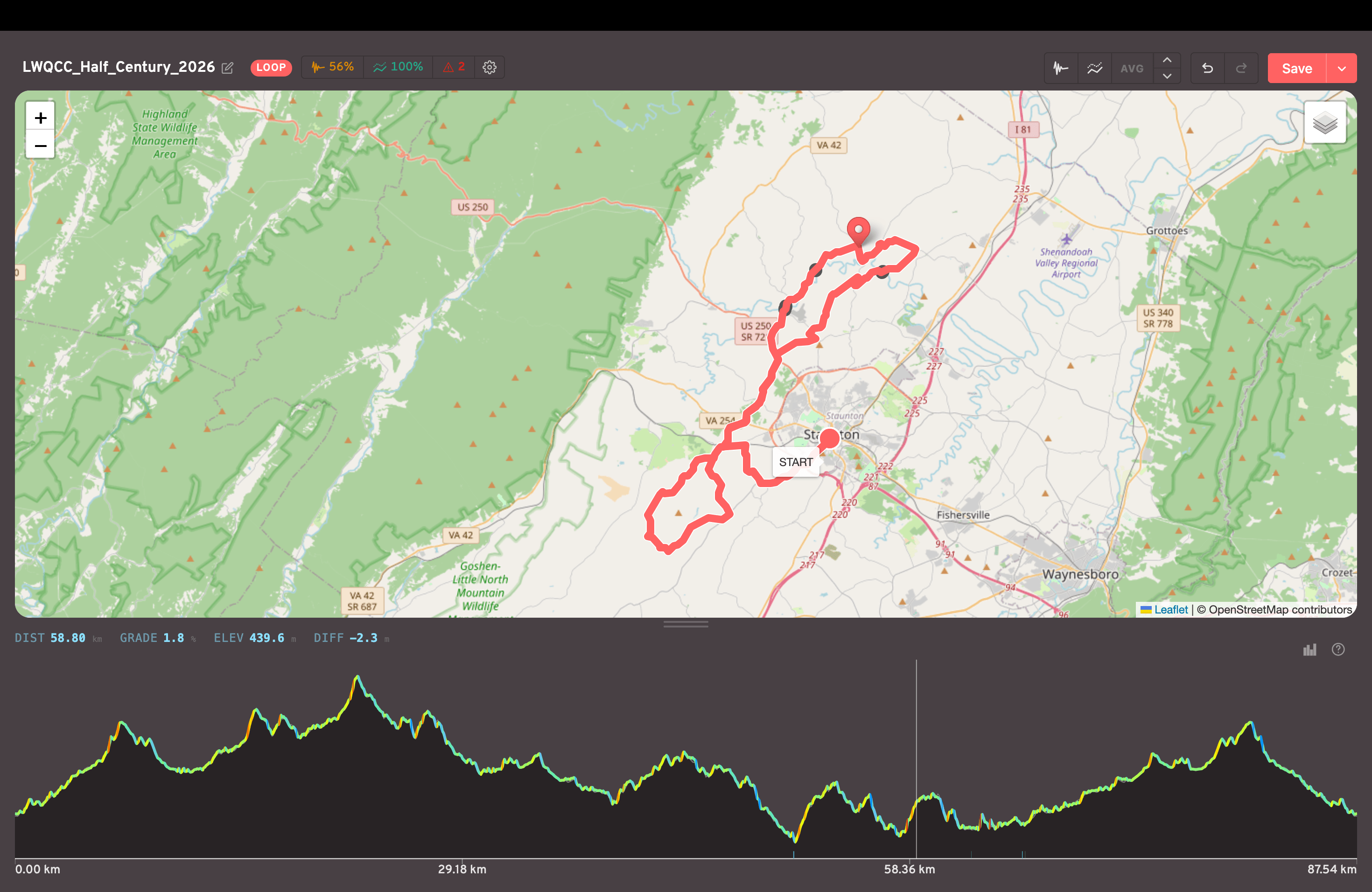
The Biketerra Route Editor lets you upload GPX, TCX or FIT routes — or draw a route directly on the map — and turn them into rideable 3D indoor cycling routes. Correct elevation, smooth unrealistic gradients, fix route geometry, and customize terrain and scenery before riding.
Adding a route
On the Routes page, click the "Add new" button and you'll see this menu:
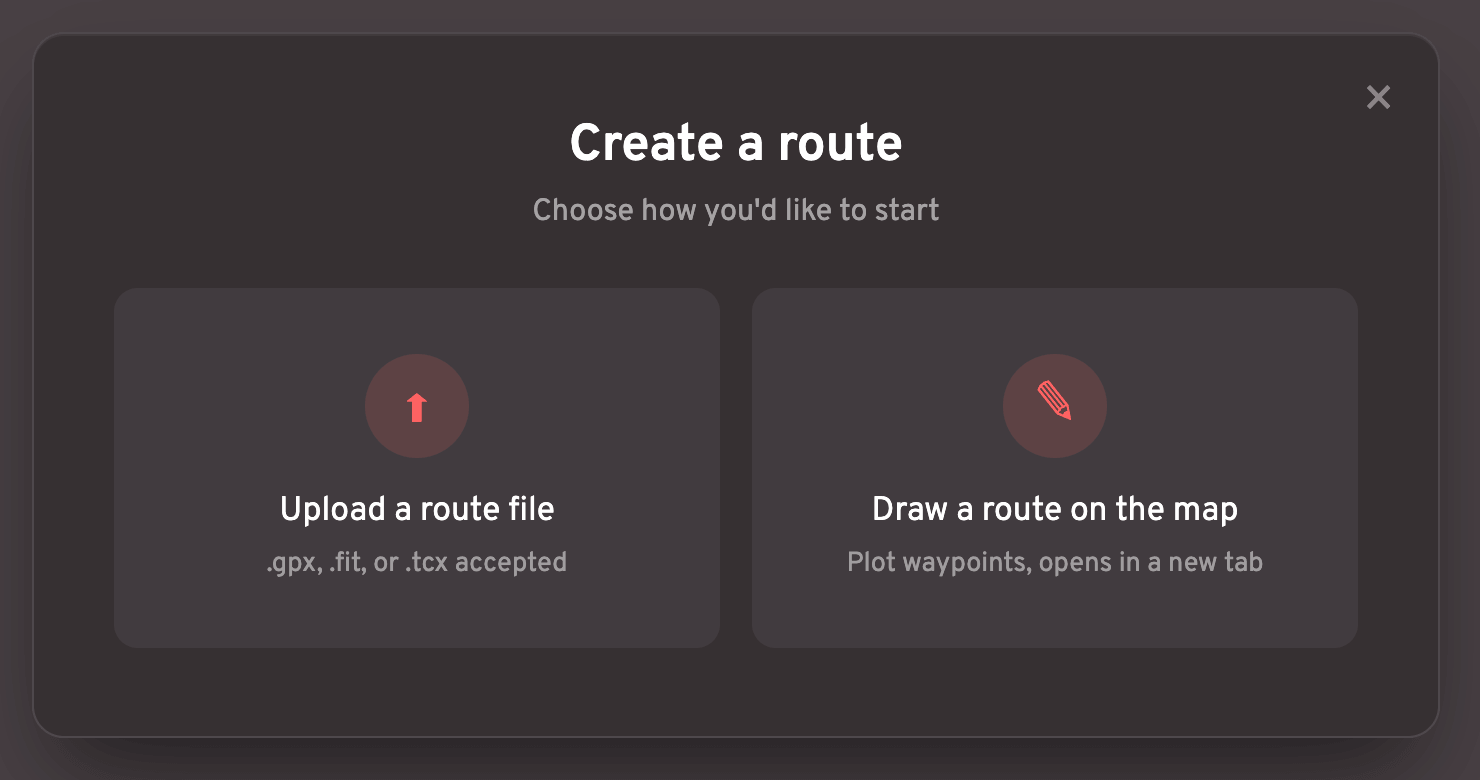
Click the "Upload" button to select a route file, or click the "Draw" button to be taken to a blank map where you can add waypoints and then click a button to draw the optimal route path.
The "Draw" feature will export a GPX file, which you could then upload into the Route Editor.
Route Quality
After uploading a route, you'll see a few quality scores at the top.
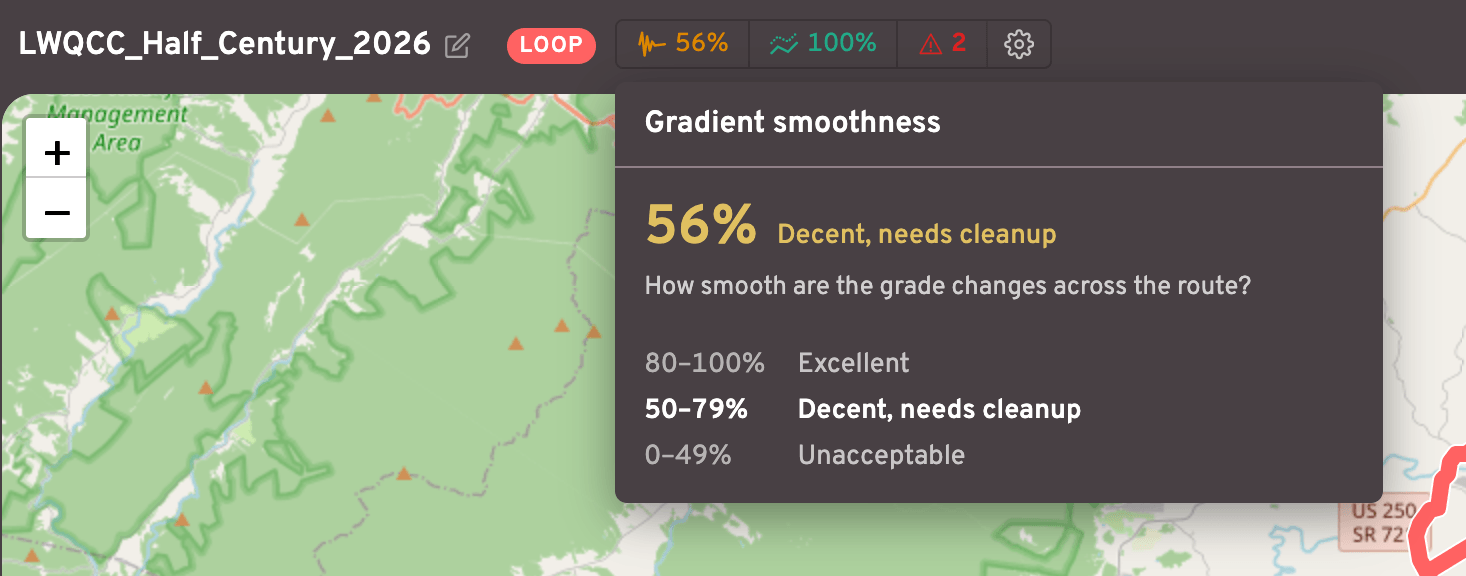
Gradient smoothness is how "jittery" the gradient changes are. Routes with lots of gradient spikes are difficult for trainers to handle and are uncomfortable to ride.
A low smoothness score can usually be improved by pressing the Smooth gradients button one or more times.
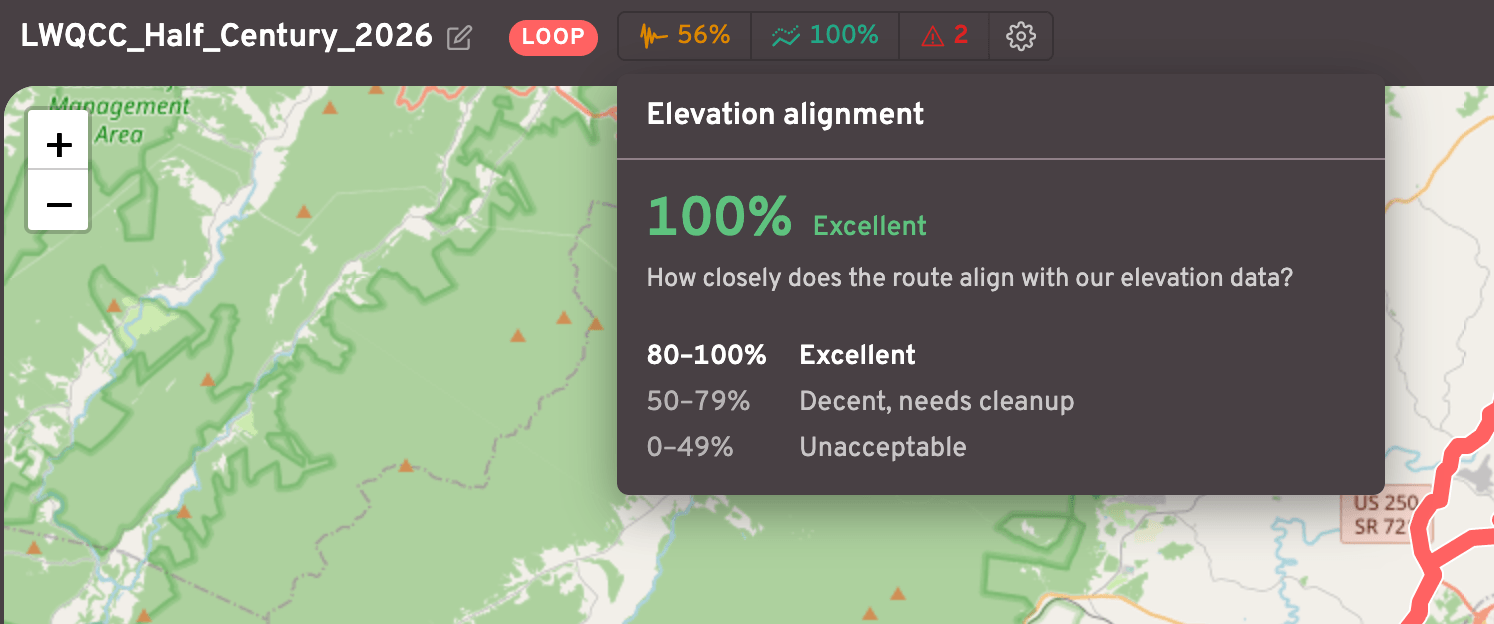
Elevation alignment is how well the route's elevations line up with our elevation "truth" data.
A route with bad elevations will often look like riding through canyons or plateaus, since the terrain elevations wouldn't line up with the road itself.
A low score can usually be improved by pressing the Align elevations button one or more times.
Issues
The Route Editor will pinpoint other issues as well, such as overly sharp corners or areas where the gradient change is way too steep.
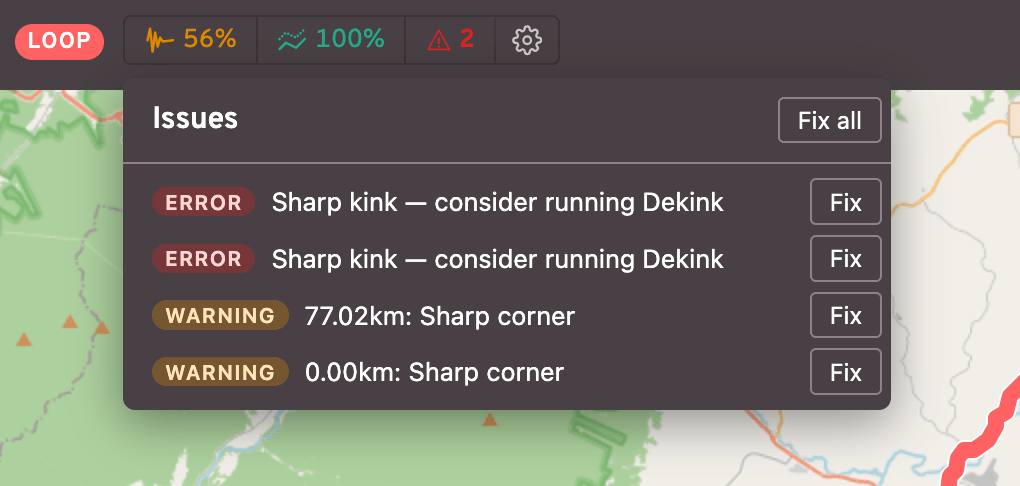
Clicking on each issue will zoom the map to that issue's location, and you can usually resolve each one via either the Fix or Fix all buttons.
Settings
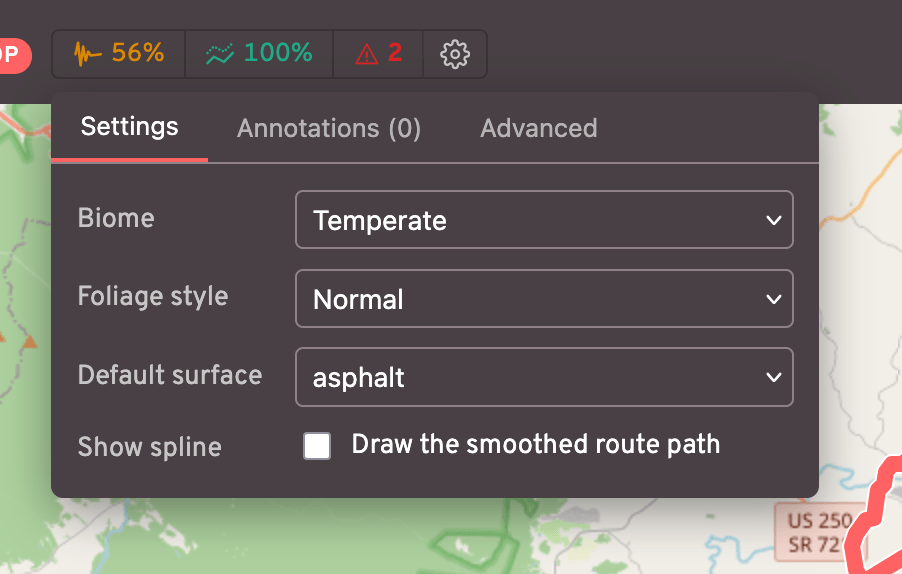
The Settings button (gear icon) contains many helpful tools. Here you can set the route's Biome, Foliage style, Default surface, etc.
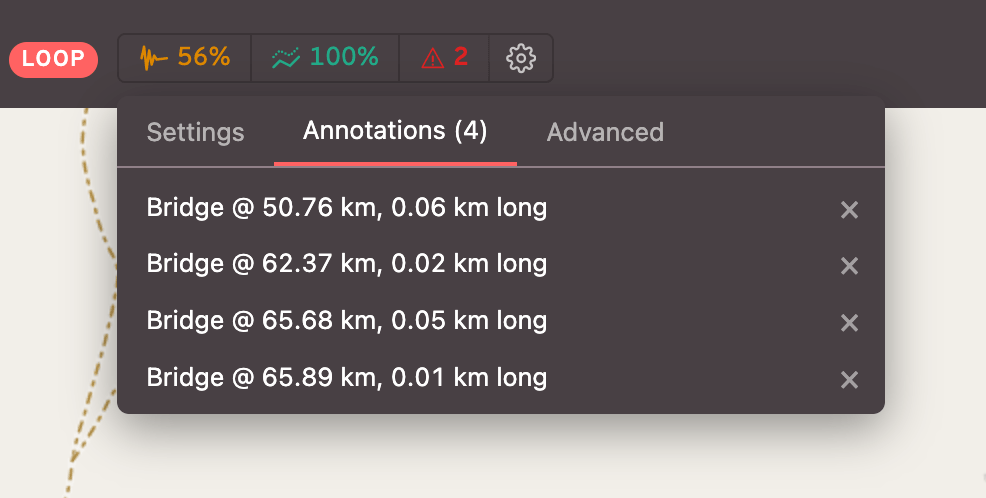
The Annotations tab lets you view a list of each annotation, click to view on the map, and remove if necessary.
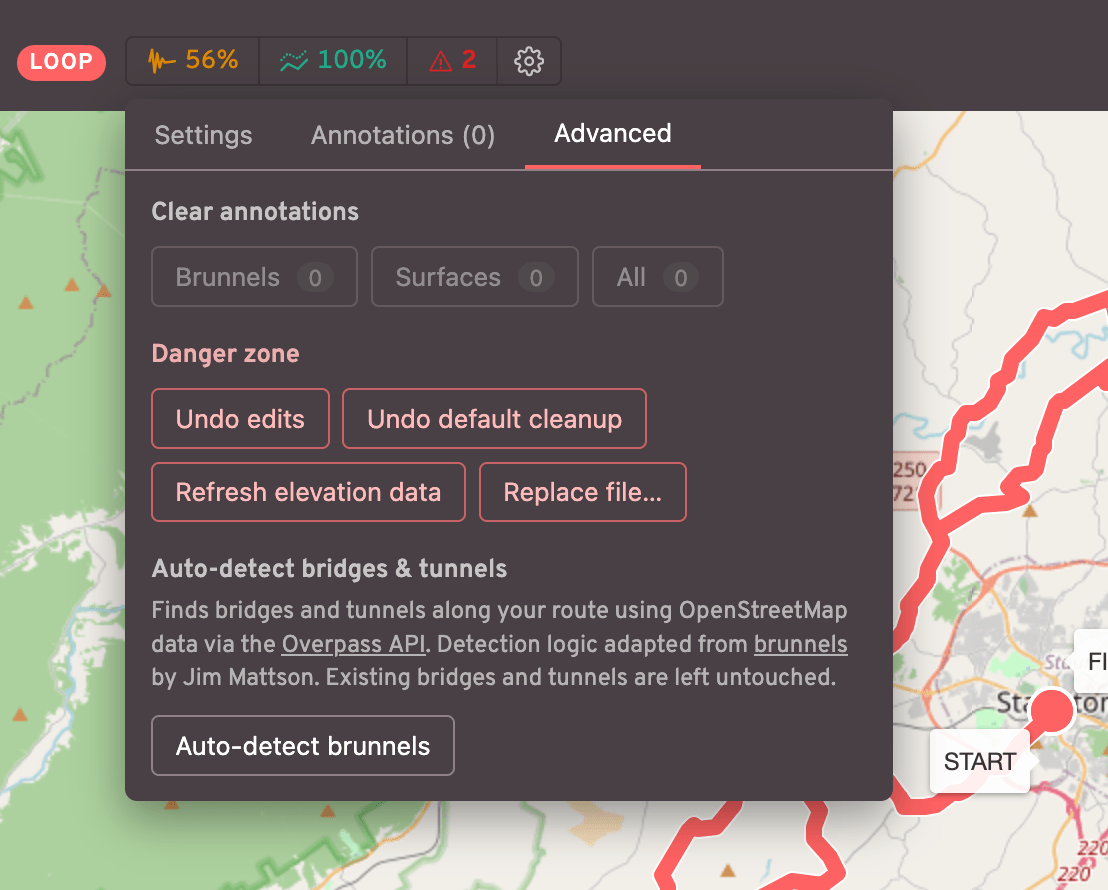
The Advanced tab contains even more settings, such as the ability to Undo edits, Refresh elevation data, or even Auto-detect brunnels (experimental).
Editing the route
Route edits can be done either on the map or the elevation chart. The top bar contains a set of buttons that can be used
Edit a single point
On the map, click on a single route point to select it. Click+drag to move it horizontally, or click the top bar buttons to adjust its altitude:

Edit multiple points
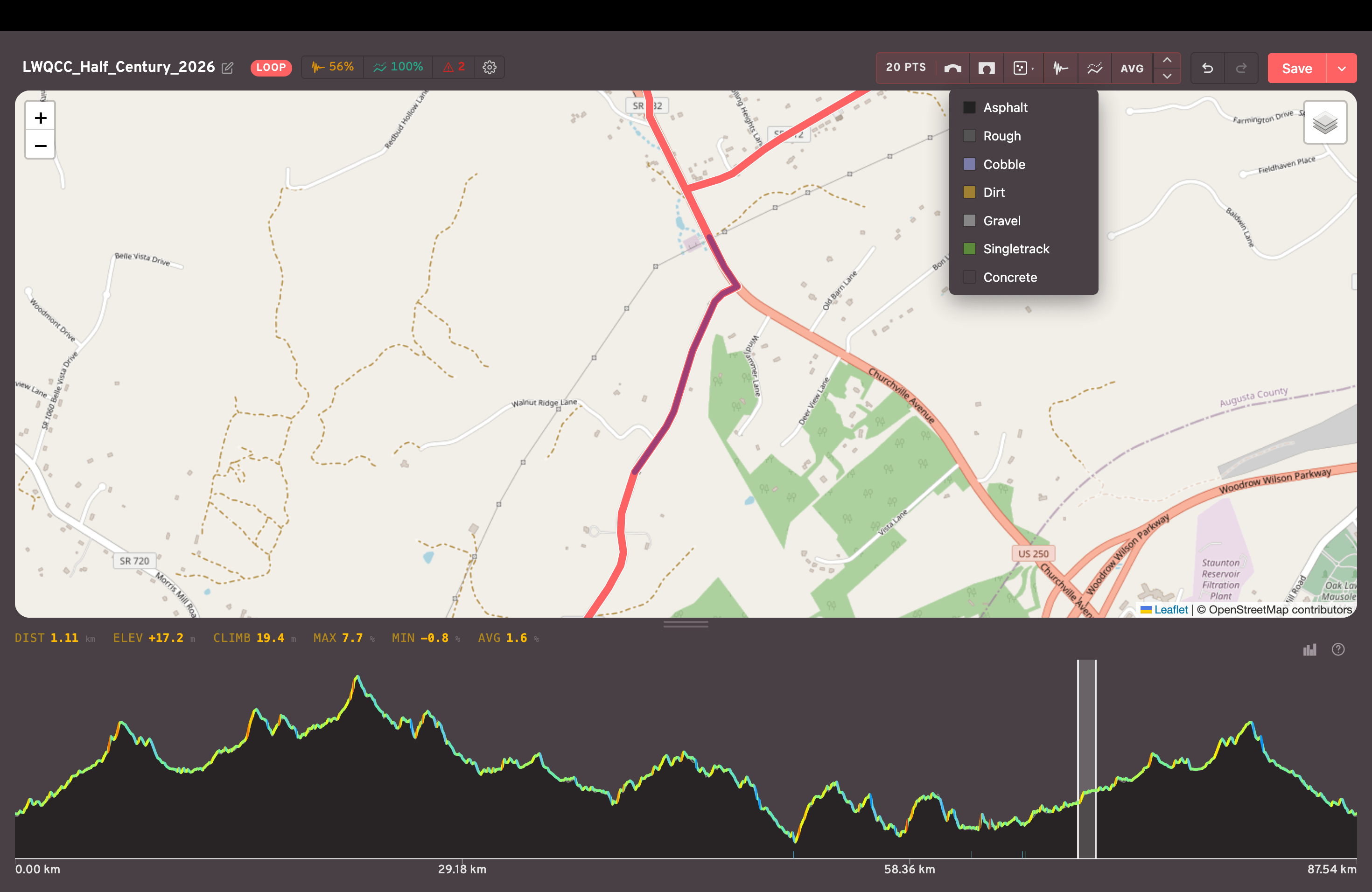
On the map click on a single point, then shift+click another point to select a group of points. Alternatively, click+drag on the elevation graph. When a group of points is selected, you'll see a variety of top bar options:

The buttons are as follows:
- Add bridge
- Add tunnel
- Add surface type (a dropdown appears to let you choose)
- Smooth gradients
- Align elevations
- Average gradients (a linear ramp from the first to the last points)
- +/- altitude (1 meter per click)
Other features
There's a (?) button at the top of the elevation chart to show the full set of hotkeys. Other common actions include shift+click on the elevation chart to zoom into that range, or Space to center the map on the selected points.
Save / export routes
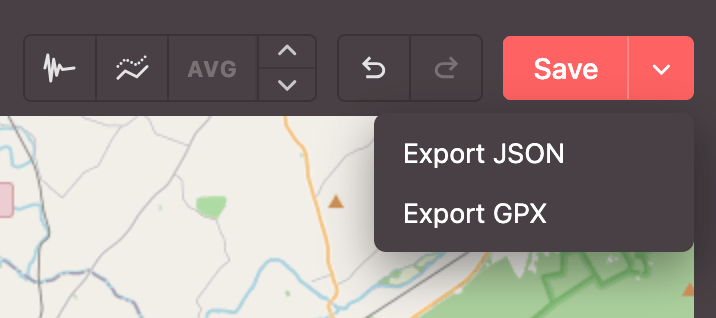
In addition to saving routes into Biketerra, you can also export your cleaned up routes to JSON or GPX files.
⚠️ Unsupported routes
For now, the Route Editor is designed only for non-overlapping routes. Your routes should NOT contain intersections or overlapping segments. While the route may still work, there will likely be 3D visual glitches.
To create an out-and-back route (A->B->A), only upload one half. Biketerra automatically adds 2 lanes and roundabouts at each end.